E Filing Filing: Why Double-Check Submission
E-filing can feel like the last step in a stressful quarter. You enter the numbers, click submit, and assume you are done. But with e filing filing, the difference between “submitted,” “transmitted,” and “accepted” is where costly problems hide.
For IRS Form 720 (Quarterly Federal Excise Tax Return), a small mistake can trigger a rejection, delay processing, or leave you without solid proof that you filed on time. Double-checking submission is not busywork, it is how you protect your business from avoidable penalties, rework, and uncomfortable conversations later.
Why “submitted” is not the same as “accepted”
When you e-file, you typically go through stages that can look similar but mean very different things:
- Prepared: You completed the return, but it has not been sent.
- Submitted/Transmitted: The return was sent from the software/provider, but the IRS has not necessarily accepted it yet.
- Accepted: The IRS e-file system acknowledged the return as accepted.
- Rejected: The IRS e-file system rejected the return due to an error (often something you can correct and resubmit).
That last mile matters because timely filing is about IRS acceptance, not just hitting submit on your end.
If you have ever wondered, “I sent it, why did the IRS say they did not get it?”, this is usually the reason.
The real risks of not double-checking an e-filed Form 720
Double-checking submission is mainly about risk reduction. Here is what can go wrong if you do not verify your filing status and keep evidence:
- Rejections you do not notice: A rejected return that is never corrected can become a late filing.
- Mismatch errors that snowball: Incorrect EIN, business name formatting, or tax period selection can cause downstream issues.
- Payment timing confusion: Filing and paying are connected, but not identical. You can file and still have a payment problem.
- Weak documentation: Without an acknowledgement and a saved copy of the filed return, it is harder to prove compliance.
The IRS makes official forms and instructions available online, and it is worth referencing them when you are unsure about what to report.
Helpful starting points:
Pre-submission checks (before you click “Submit”)
Most Form 720 e-file issues are preventable. A quick review before submission is often faster than troubleshooting a rejection afterward.
1) Confirm the quarter and tax period
Form 720 is filed quarterly. Selecting the wrong quarter is an easy mistake, especially around year-end.
Double-check:
- The calendar quarter you are filing for
- The tax year attached to that quarter
If you are unsure of the due dates, the IRS and many filing resources summarize them, and they generally follow the end-of-month schedule for each quarter.
2) Verify business identity details (EIN and legal name)
A very common cause of rejection across IRS e-file systems is a mismatch in identity details.
Review:
- Employer Identification Number (EIN)
- Legal business name (exactly as IRS records reflect it)
- Business address
If you recently changed the legal name, moved, or updated responsible party information, be extra cautious. Even small formatting mismatches can matter.
3) Re-check the excise tax categories you are reporting
Form 720 covers many excise tax categories, and the form relies on selecting the correct IRS numbers (tax codes) and entering the correct base amounts.
Before filing, confirm:
- You selected the correct category/tax code
- Your tax base (gallons, tickets, premiums, sales price, covered lives for PCORI fee, etc.) matches your records
- You did not accidentally report the same liability twice in two places
If you need deeper category guidance, it can help to review IRS excise tax background material such as Publication 510 (Excise Taxes).
4) Validate math, rounding, and “blank vs zero” entries
E-filing systems typically validate totals, but you should still sanity-check:
- Totals by category
- Totals on Part I and Part II
- Any credits or adjustments
Also watch out for fields that should be zero versus fields that should be blank (some systems treat them differently).
5) Confirm deposits, payment method, and what you are actually paying
Form 720 compliance often involves both:
- The quarterly return (Form 720)
- Deposits/payments (often through EFTPS, depending on your situation)
If you are paying electronically, confirm you used the correct system and that the payment aligns to the proper tax period.
Official payment resources:
Important: payment rules can vary based on the tax and the size of liability, so when in doubt, rely on the Form 720 instructions and, if needed, professional advice.
6) Confirm required attachments (when applicable)
Some Form 720 scenarios require additional forms or schedules (for example, environmental taxes often involve Form 6627; other categories may require supporting schedules).
Before submission, ask:
- Do I have any required attachments for the taxes I am reporting?
- Did I include all supporting information needed for my category?
A quick “double-check” table you can use every quarter
Use this as a last-look checklist right before you transmit.
| Double-check item | Why it matters | What to verify |
|---|---|---|
| Quarter and tax year | Prevents filing the right numbers in the wrong period | Correct quarter selected, correct year |
| EIN and legal name | Common e-file rejection trigger | Matches IRS records exactly |
| Tax codes/categories | Prevents misreporting liability | Correct IRS numbers chosen |
| Tax base and source data | Prevents over/underpayment | Books, invoices, premium reports, covered life counts |
| Totals and credits | Prevents mismatched totals | Part totals tie out, credits supported |
| Payment alignment | Avoids payment misapplied to wrong period | Correct tax period and method used |
| Attachments | Avoids incomplete filing | Required forms included (if applicable) |

Post-submission checks (after you transmit)
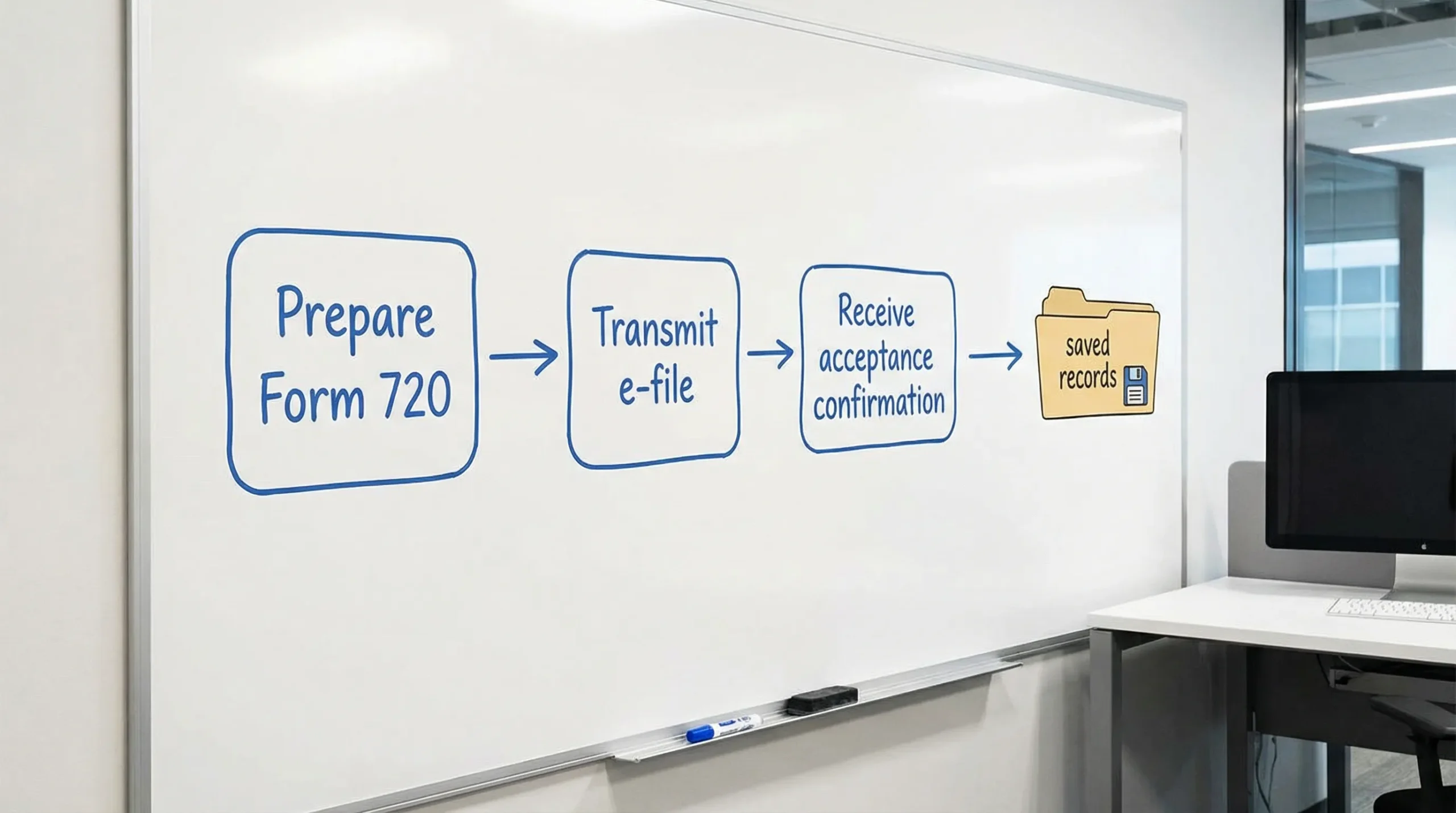
Double-checking does not stop when you click submit. Your goal is to confirm acceptance and preserve evidence.
1) Look for an IRS acknowledgement (acceptance or rejection)
Most IRS e-file workflows provide a confirmation step indicating whether the return was accepted or rejected.
Best practice:
- Do not treat “sent” as the final status.
- Wait for (and save) the acceptance acknowledgement.
If you do not receive an acknowledgement within the timeframe your filing method typically provides, investigate quickly.
2) Save proof of filing and a copy of the filed return
For compliance and internal controls, keep:
- A PDF (or printed copy) of the filed Form 720
- The e-file acknowledgement or confirmation
- Payment confirmation (when applicable)
This is especially helpful if a notice arrives later, or if you need to confirm what was reported for an amendment.
3) If the return is rejected, fix it fast and resubmit
A rejection is not always a crisis, but ignoring it can become one.
Common rejection themes include:
- EIN or legal name mismatch
- Missing required fields
- Invalid tax period selection
- Data formatting issues
If you get a rejection:
- Read the reject explanation carefully
- Correct the issue
- Resubmit as soon as possible
- Keep documentation of the rejection and the successful resubmission
4) Confirm your payment did what you expected
Even if your return is accepted, confirm that:
- The payment was scheduled for the correct date
- The payment amount matches your intended balance due
- The payment was applied to the intended period
If you use EFTPS, for example, your payment history and confirmation numbers are essential records.
What if you discover a mistake after filing?
Double-checking submission also includes looking at what you filed once it is accepted. If you later find an error, you may need to correct it.
Amendments (Form 720-X)
If you need to correct a previously filed Form 720, the IRS uses Form 720-X for amendments. Your ability to amend and the details required depend on what you are changing.
Start here:
Claims (Form 8849)
Some excise tax situations involve claims for refund or credit using Form 8849, depending on the tax type and circumstances.
Start here:
If you are unsure whether an adjustment belongs on an amended return versus a claim form, it is worth slowing down and confirming with official instructions or a qualified tax professional.
Practical tips to make double-checking easier next quarter
Double-checking is simplest when you systematize it.
- Create a “Form 720 close” folder each quarter: source reports, worksheets, confirmations, and filed PDFs.
- Reconcile monthly (not just quarterly) if your excise tax base is operational (fuel, sales, premiums, transactions). Catching anomalies early reduces quarter-end errors.
- Document assumptions: allocation methods, exemption logic, covered life counting method (PCORI), and any unusual transactions.
This is not just about preventing penalties, it is about making future quarters faster.
How eFileExcise720 can help reduce submission stress
If you are looking for a simpler way to handle e filing filing for Form 720, an IRS-authorized platform can reduce friction, especially when deadlines are tight.
eFileExcise720 is built to help businesses prepare and e-file Form 720 online without downloading software. It supports all Form 720 categories and also supports Form 720 amendments (720-X) and Form 8849 claims. If you get stuck, personalized customer support and secure data handling can make the process feel far more manageable.
You can learn more or start from the main site here: eFileExcise720.
Frequently Asked Questions
What should I double-check after e-filing Form 720? Confirm you received an acceptance acknowledgement (not just a submitted status), save a copy of the filed return, and keep payment confirmations and timestamps.
What is the difference between “submitted” and “accepted” in e-filing? “Submitted” usually means the return was sent from the provider, while “accepted” means the IRS acknowledged it as a valid e-filed return.
If my Form 720 e-file is rejected, what should I do? Review the rejection reason, correct the issue (often an identity mismatch or missing field), and resubmit promptly. Save both the rejection notice and the acceptance confirmation after resubmission.
Can I fix a mistake after my Form 720 is accepted? Often yes. Corrections are typically handled with Form 720-X (amended return), depending on what needs to change and the IRS rules for that tax.
Do I need to pay separately from filing Form 720? Sometimes. Filing the return and making deposits or payments are related but not always the same action. Use the Form 720 instructions and your payment method (EFTPS or IRS Direct Pay) to confirm timing and application.
File with confidence (and keep proof)
Double-checking submission is one of the simplest habits that can meaningfully reduce excise tax risk. If you want a secure, IRS-authorized way to file Form 720 online with dedicated support, create your free account and start your return at eFileExcise720.